Laptop Keyboard Not Working? 15 Proven Fixes for Windows 11 & 10
Few things are as frustrating as a laptop keyboard that suddenly stops typing, especially in the middle of online classes, office work or an exam form deadline. The good news: most keyboard problems are caused by a setting, a driver or a little dirt, not a broken keyboard. In this guide you'll learn how to find out exactly what is wrong in two minutes, and then fix it step by step.
These fixes work on Windows 11 and Windows 10 laptops from all major brands sold in India, including HP, Dell, Lenovo, Asus, Acer, MSI, Samsung, Infinix and Redmi. We start with the quickest checks and move towards hardware repairs, so follow them in order and stop as soon as your keyboard works again.
Key takeaways
- First test every key with a free online keyboard tester to see whether the whole keyboard or only some keys are failing.
- If an external USB keyboard works, the problem is your laptop's built-in keyboard, its driver or a setting.
- If keys work in the BIOS but not in Windows, it is a software problem you can fix yourself.
- Filter Keys, Fn Lock and Num Lock cause a surprising number of "broken keyboard" complaints.
- Keys that fail everywhere, even in the BIOS, need cleaning or a replacement keyboard.
Step 0: Find out what kind of keyboard problem you have
Before changing any settings, spend two minutes diagnosing the problem. The fix for "nothing types at all" is very different from the fix for "the E key types twice" or "my letters type numbers".
Open our online keyboard tester and press every key on your laptop one by one. Each working key turns grey on the screen. Note down:
- Which keys don't light up at all. These are not being detected.
- Which keys light up as a different key. This points to a layout or Num Lock problem.
- Whether one press shows two letters. That is key chatter; the Key Chatter Test confirms it.
- Whether a group of neighbouring keys all fail together. That usually means liquid damage or a cable problem.
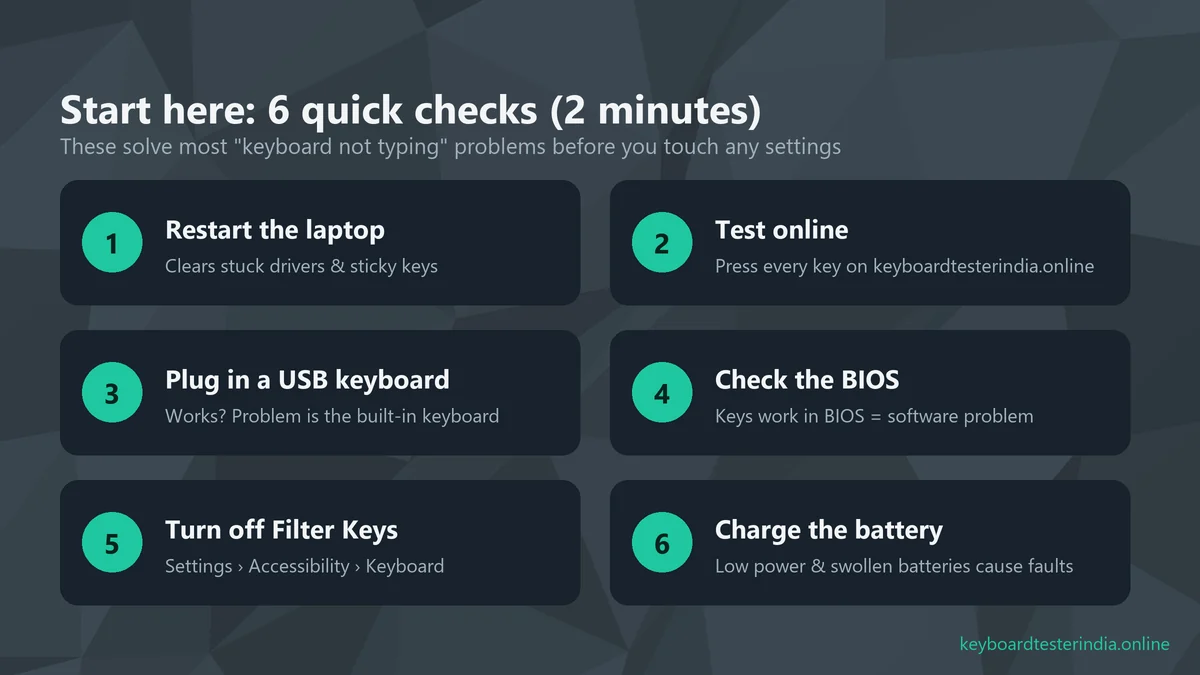
Part 1: Quick fixes (try these first)
Fix 1: Restart your laptop properly
It sounds too simple, but a restart clears a stuck keyboard driver, a frozen accessibility setting or a background app that has grabbed the keyboard. Use Start › Power › Restart, not Shut down. On Windows 10 and 11, Shut down uses Fast Startup and doesn't fully reload drivers, while Restart does.
If you can't type your PIN or password on the login screen, click the Accessibility icon at the bottom right and turn on the On-screen keyboard, then type with the mouse or touchpad.
Fix 2: Plug in an external keyboard
Connect any USB keyboard; a basic one costs a few hundred rupees and is worth keeping at home anyway. This one test tells you a lot:
- External keyboard works, laptop keyboard doesn't: the problem is limited to the built-in keyboard, its driver or its cable.
- Neither keyboard works: Windows itself is the problem. Look at Fixes 4, 7, 8 and 11.
No spare keyboard? Press Win + Ctrl + O or go to Settings › Accessibility › Keyboard › On-screen keyboard to type with your mouse while you troubleshoot.
Fix 3: Check whether the keys work in the BIOS
The BIOS (or UEFI setup) runs before Windows loads, so it is the best way to separate software problems from hardware problems. Restart the laptop and tap the BIOS key repeatedly as soon as the logo appears:
| Brand | BIOS key (most models) |
|---|---|
| HP | Esc then F10 |
| Dell | F2 |
| Lenovo | F2 or Fn + F2; F1 on ThinkPads |
| Asus | F2 or Del |
| Acer | F2 |
Inside the BIOS, use the arrow keys and Enter to move around, and try typing in any text field. If the keys work here but not in Windows, your keyboard hardware is fine, so focus on Part 2. If the keys don't work even in the BIOS, skip to Part 3. Exit without saving changes.
Part 2: Windows settings and driver fixes
Fix 4: Turn off Filter Keys and Sticky Keys
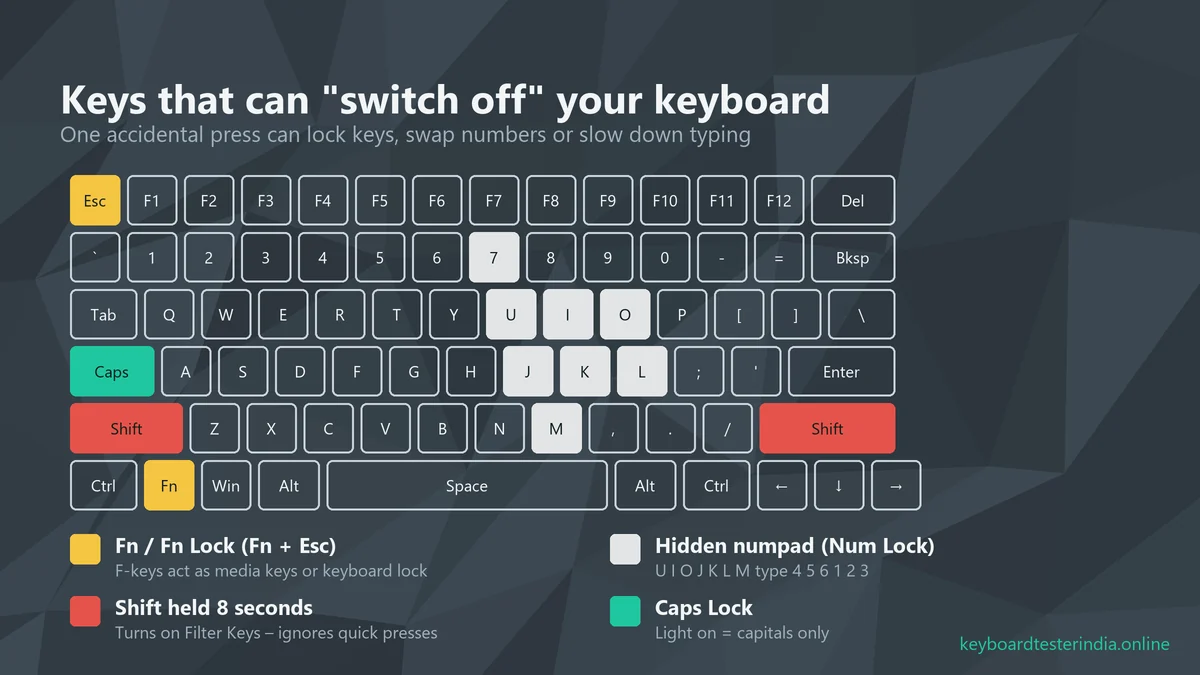
Filter Keys is an accessibility feature that ignores short or repeated key presses. It switches on when you hold the right Shift key for about eight seconds, which is easy to do by accident. Once it's on, the keyboard seems "slow" or seems to type nothing unless you hold each key down.
- Open Settings (Win + I; use the mouse if the keyboard is dead).
- Go to Accessibility › Keyboard (on Windows 10: Ease of Access › Keyboard).
- Turn off Filter keys, Sticky keys and Toggle keys.
- Open each option and also turn off its keyboard shortcut so it doesn't come back.
Fix 5: Check the Fn Lock, Num Lock and keyboard lock keys
Laptop keyboards pack two jobs into many keys, and one wrong toggle makes the keyboard behave strangely:
- Letters type numbers (U, I, O, J, K, L, M type 4, 5, 6, 1, 2, 3): the hidden numpad is on. Press Num Lock, or Fn + Num Lock / Fn + F11 on small laptops.
- F1–F12 change volume or brightness instead, or the other way round: Fn Lock is toggled. On many Dell, Lenovo and Asus laptops, press Fn + Esc. On many HP models, change Action Keys Mode in the BIOS. On Acer laptops, look for Function key behaviour in the BIOS Main tab.
- The whole keyboard is locked: some laptops have a keyboard lock shortcut, often an Fn combination shown with a padlock icon. Check your model's manual.
Fix 6: Check the keyboard language and layout
If keys work but type the wrong symbols, for example Shift + 2 types " instead of @, or Hindi characters appear, your input language or layout has changed. Indian users often have Hindi, Tamil or other Indian-language keyboards installed alongside English, and Win + Space or Alt + Shift switches between them by accident.
- Look at the language indicator next to the clock (ENG / HIN / ENG IN).
- Press Win + Space to switch back to English (India) – US keyboard or English (United States) – US.
- To remove extra layouts, go to Settings › Time & language › Language & region, click the three dots next to your language › Language options, and remove keyboards you don't use.
Laptops sold in India use the US layout. If "United Kingdom" is selected, the @, ", # and \ keys will be wrong.
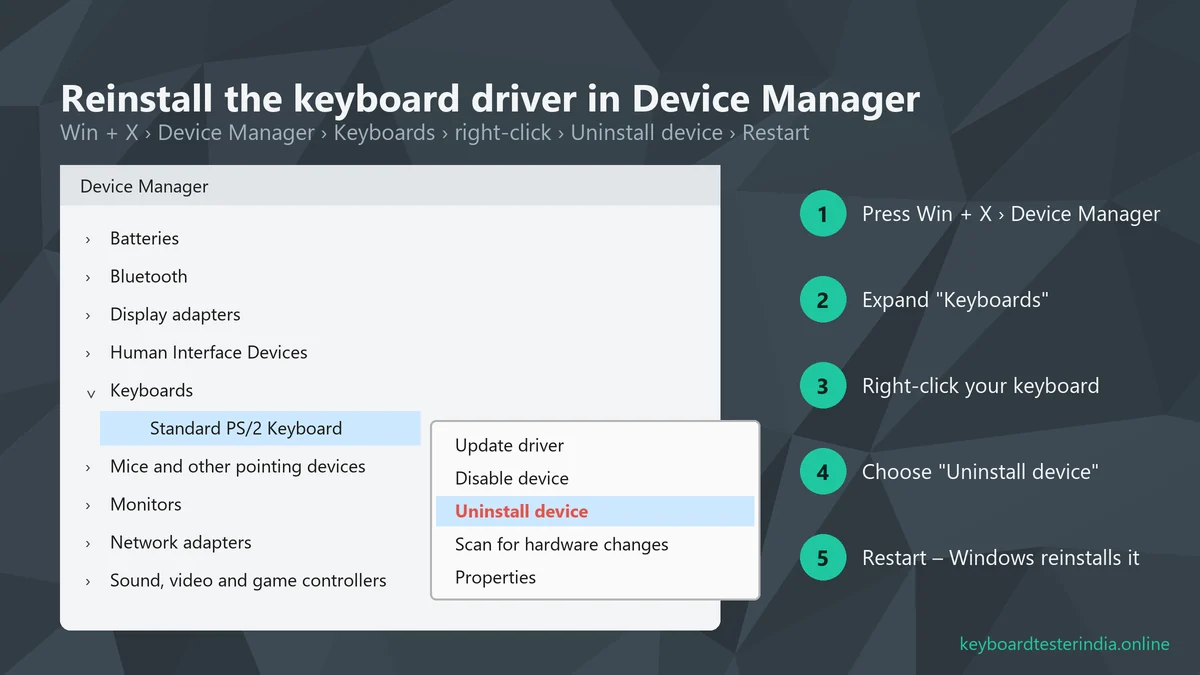
Fix 7: Reinstall the keyboard driver
A corrupted driver is one of the most common reasons a laptop keyboard stops working after a Windows update. Reinstalling it is safe and takes a minute:
- Right-click the Start button (or press Win + X) and choose Device Manager.
- Expand Keyboards. You'll usually see Standard PS/2 Keyboard or HID Keyboard Device.
- Right-click it › Uninstall device › confirm.
- Restart the laptop. Windows reinstalls the correct driver automatically.
If you see a yellow warning triangle, or several "Unknown device" entries under Other devices, your chipset or serial IO drivers are missing. Install them from your laptop maker (Fix 8).
Fix 8: Update Windows, chipset drivers and BIOS
Laptop keyboards connect through the chipset, so an outdated chipset, serial IO or BIOS driver can break them, especially after a big Windows 11 feature update. Use your brand's own support app, which installs drivers made for your exact model:
- HP: HP Support Assistant, or HP's support website with your serial number.
- Dell: SupportAssist, or Dell's support website with your Service Tag.
- Lenovo: Lenovo Vantage (Commercial Vantage on ThinkPads).
- Asus: MyASUS.
- Acer: Acer Care Center, or Acer's drivers page.
Then run Settings › Windows Update › Check for updates, and install anything under Advanced options › Optional updates as well. If the keyboard broke straight after an update, you can uninstall that update from Settings › Windows Update › Update history › Uninstall updates.
Fix 9: Run the keyboard troubleshooter
Windows can check common keyboard settings for you. On Windows 10, go to Settings › Update & Security › Troubleshoot › Additional troubleshooters › Keyboard. On Windows 11, most troubleshooters have moved to the Get Help app. Open it and search "keyboard not working". It isn't magic, but it resets a few settings you might miss.
Fix 10: Turn off Fast Startup
Fast Startup saves part of Windows to disk when you shut down, so a stuck driver can survive every "shut down". If your keyboard only fails after switching on, but works after a Restart, turn it off:
- Open Control Panel › Hardware and Sound › Power Options › Choose what the power buttons do.
- Click Change settings that are currently unavailable.
- Untick Turn on fast startup and save.
Fix 11: Check for apps that grab the keyboard
Some software can block or remap keys: game macro tools, keyboard remappers, screen recorders, remote-access apps and malware. Press Ctrl + Shift + Esc to open Task Manager, go to Startup apps and disable anything unfamiliar, then restart. Run a full scan with Windows Security too. If the keyboard works in Safe Mode (hold Shift while clicking Restart › Troubleshoot › Advanced options › Startup Settings), a startup app or driver is the culprit.
Part 3: Hardware fixes
If keys don't work even in the BIOS, or you see a pattern like a whole row failing, the problem is physical. Don't worry: many hardware faults are simply dirt.
Fix 12: Clean under the keys
Indian homes and offices are dusty, and crumbs, hair and dust collect under laptop keys quickly. Keys then feel mushy, stick or stop registering.
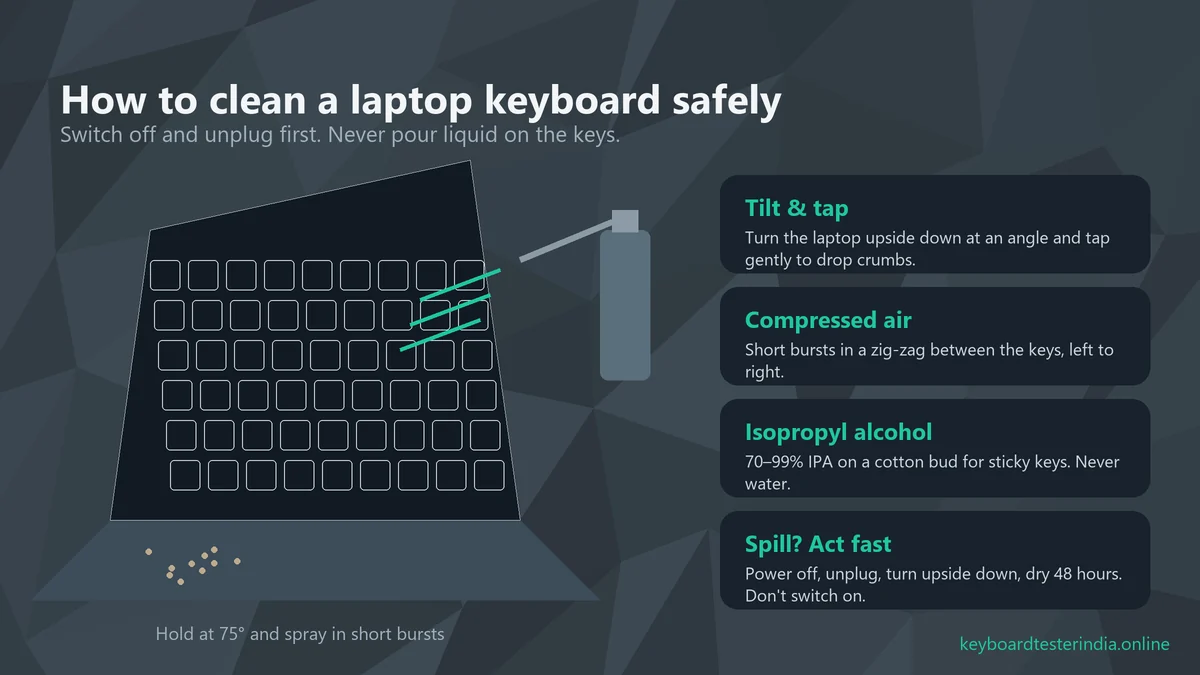
- Shut down and unplug the laptop.
- Turn it upside down at an angle and tap the base gently to let loose crumbs fall out.
- Hold the laptop at about 75° and use compressed air in short bursts, moving left to right across the rows.
- For sticky keys, dip a cotton bud in isopropyl alcohol (70–99%), squeeze it nearly dry, and clean around the key edges. Never use water or spray liquid directly on the keyboard.
- Wait 10 minutes for any alcohol to evaporate, then switch on and test again.
Laptop keycaps are fragile and their clips break easily, so avoid prising them off unless you know how your model's keycaps are fitted.
Fix 13: What to do after a liquid spill
Tea, coffee and water spills are among the most common laptop accidents. What you do in the first minute matters most:
- Switch off immediately by holding the power button, and unplug the charger.
- Turn the laptop upside down in a tent shape so liquid drains away from the motherboard.
- Wipe what you can reach and leave it to dry for at least 48 hours in a well-ventilated place. Don't use a hair dryer on hot; it can push liquid deeper.
- Don't switch it on to "check". Power plus moisture causes corrosion and short circuits.
Sugary drinks like chai leave sticky residue that keeps keys from working even after drying. These keyboards usually need professional cleaning or replacement, so take the laptop to a repair shop and tell them it was a spill.
Fix 14: Check for a swollen battery
If the keyboard has started to bulge, the touchpad clicks by itself, or the base doesn't sit flat, the battery underneath may be swelling. A swollen battery presses up against the keyboard and can stop keys from working. It is also a fire risk. Stop using and charging the laptop and get the battery replaced at a service centre as soon as possible.
Fix 15: Reseat the cable or replace the keyboard
Inside the laptop, the keyboard connects to the motherboard with a thin ribbon cable. A drop, a repair or simple wear can loosen it, which often makes several unrelated keys stop working together. Reseating the cable is a job for a technician on most modern laptops, as you have to open the base carefully.
If a key switch or the keyboard membrane has failed, the keyboard needs replacing. At local repair shops in India, a replacement keyboard for common HP, Dell, Lenovo, Asus and Acer models typically costs roughly ₹1,500 to ₹4,000 including fitting. Backlit keyboards, gaming laptops and models where the keyboard is fused to the top case cost more. Brand service centres charge more but use genuine parts and give a warranty on the repair.
Before paying for a repair, check whether your laptop is still under warranty or covered by an extended warranty or accidental damage plan. You can check this on the brand's support website using the serial number.
Brand-specific tips
| Brand | Common cause | What to try |
|---|---|---|
| HP | Action keys swapped, driver after updates | BIOS (F10) › System Configuration › Action Keys Mode; HP Support Assistant drivers |
| Dell | Fn Lock toggled, Filter Keys | Fn + Esc; SupportAssist hardware scan (or ePSA diagnostics with F12 at startup) |
| Lenovo | FnLock and Hotkey Mode | Fn + Esc; BIOS › Configuration › Hotkey Mode; Lenovo Vantage |
| Asus | Function key lock, ATK/Asus System Control driver | Fn + Esc; MyASUS › Customization; reinstall Asus System Control Interface |
| Acer | Function key behaviour, chipset drivers | BIOS (F2) › Main › Function key behaviour; Acer drivers page |
Special cases
Keyboard works but letters appear late
If letters show up a second after you type, or get skipped when you type fast, check three things. First, open Settings › Accessibility › Keyboard and make sure Filter Keys is off (Fix 4). Second, open Task Manager and see whether the CPU or disk is stuck at 100%. A busy antivirus scan or a Windows update in the background can make typing lag on budget laptops with slower hard disks. Third, if you're using a Bluetooth keyboard, move it closer and replace the batteries. You can measure the delay with our keyboard latency test.
Keyboard doesn't work only on the login screen
If the keyboard works normally inside Windows but not on the sign-in screen, the cause is usually Fast Startup (Fix 10) or a driver that loads too late. Turn off Fast Startup and install the chipset drivers from your laptop maker. Until then, use the on-screen keyboard from the Accessibility icon to sign in.
Keyboard backlight not working
The backlight has its own shortcut, usually Fn + F5, F9, F10 or Fn + Space, depending on the brand. Press it a few times to cycle the brightness levels. Some laptops switch the backlight off automatically after a few seconds of no typing or on battery; you can change this in the brand's app (MyASUS, Lenovo Vantage, Dell Feature Enhancement Pack or HP's BIOS settings).
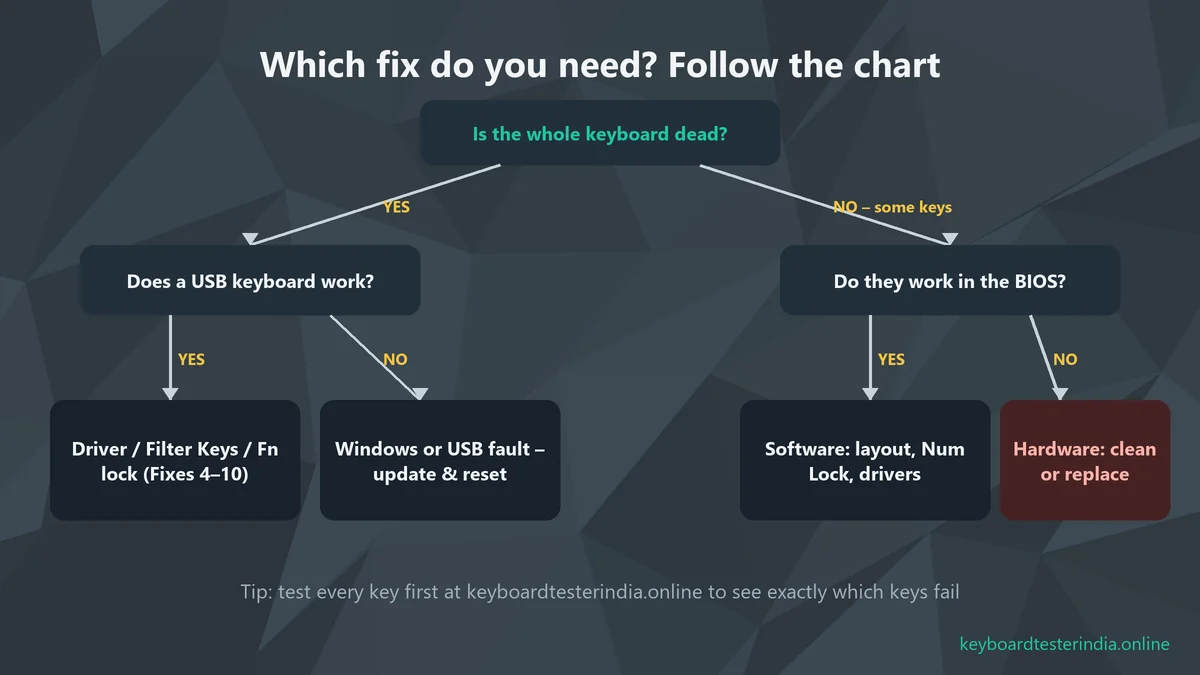
Which fix do you need? A quick flowchart
Still not sure where to start? Use this chart. Answer two questions and jump to the fixes that match your situation.
How to keep your laptop keyboard working longer
- Keep food and drinks away from the laptop, or at least on a separate table.
- Clean the keyboard monthly with a soft brush or compressed air. Use a silicone keyboard cover if you work in a dusty place.
- Close the lid gently and don't carry the laptop by the screen, which strains the hinges and the keyboard cable.
- Avoid long sessions at 100% charge in heat, as heat speeds up battery swelling. Many brand apps offer a battery-care or charge-limit mode.
- Test every few months with the keyboard tester, and use the chatter test if you notice double letters, to catch failing keys early, ideally while still under warranty.
Summary
When a laptop keyboard stops working, start by testing every key online, then work through the list: restart, try an external keyboard and check the BIOS. If the keys work in the BIOS, the fix is almost always in Windows: Filter Keys, Fn Lock or Num Lock, the keyboard layout, or a driver that needs reinstalling or updating. If keys fail everywhere, clean the keyboard carefully, check for spills and a swollen battery, and then consider a professional repair or replacement.
Once your keyboard is working again, run our typing speed test to make sure every key responds smoothly, and bookmark Keyboard Tester India for the next time something feels off.
Frequently asked questions
Why has my laptop keyboard suddenly stopped working?
The most common causes are Filter Keys being switched on by holding Shift, a stuck or corrupted keyboard driver after a Windows update, the Fn or Num Lock key changing what keys do, dust or liquid under the keys, and a loose keyboard ribbon cable. Restart first, then test every key online to see which keys fail.
How do I unlock my laptop keyboard?
Press Fn + Esc to toggle Fn Lock on many Dell, Lenovo and Asus laptops, press Num Lock if letters are typing numbers, and turn off Filter Keys and Sticky Keys in Settings › Accessibility › Keyboard. Some laptops also have a keyboard lock key combination listed in the user manual.
Why are only some keys on my laptop not working?
If only a few keys fail, the cause is usually dirt or liquid under those keys, a hidden numpad turned on with Num Lock, or the wrong keyboard layout. If the same keys also fail inside the BIOS, it is a hardware fault and the keyboard needs cleaning or replacing.
How can I type if my laptop keyboard is not working?
Plug in any USB or Bluetooth keyboard, or open the on-screen keyboard with Windows + Ctrl + O, or from Settings › Accessibility › Keyboard. Both work while you troubleshoot or wait for a repair.
What is the cost of laptop keyboard replacement in India?
At local repair shops a replacement keyboard for common HP, Dell, Lenovo, Asus and Acer models usually costs roughly ₹1,500 to ₹4,000 including fitting. Brand service centres and laptops with backlit keyboards or keyboards fused to the top case cost more. Always ask for a quote first, and check if the laptop is still under warranty.
Can a Windows update stop the keyboard from working?
Yes. Occasionally an update installs a wrong or faulty keyboard or chipset driver. Uninstalling the keyboard in Device Manager and restarting, installing drivers from your laptop maker, or rolling back the update under Settings › Windows Update › Update history usually fixes it.
Test your laptop for free
Use these free tools while you follow this guide. They run in your browser, with nothing to install.

We build free online tools to test keyboards, mice, screens and other laptop parts, and write practical guides for laptop and PC users across India. Spotted something out of date? Let us know.