Second-Hand Laptop Checklist: 30 Checks to Do Before You Buy in India
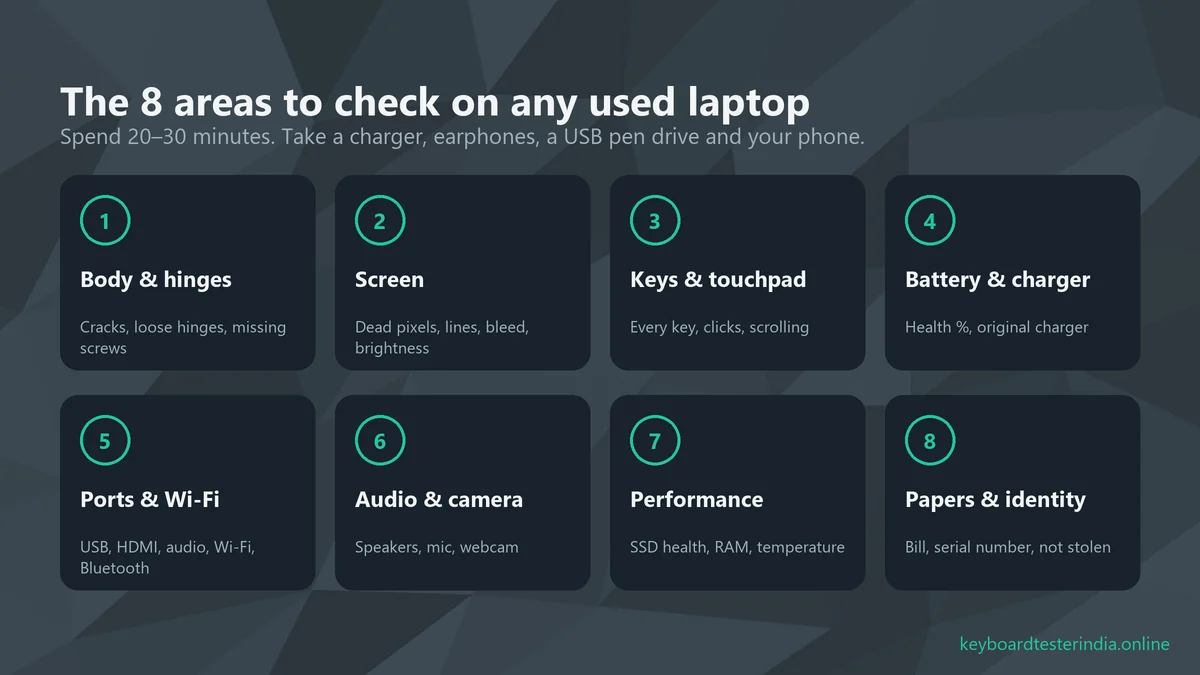
A good second-hand laptop can save you ₹15,000 to ₹40,000 compared with buying new, which is perfect for students, freelancers and families who need a second computer. But a bad deal can leave you with a dying battery, a flickering screen or even a stolen device. This checklist walks you through 30 checks in 8 areas that take about 20–30 minutes and protect your money.
It works whether you're buying on OLX, Cashify, Quikr or Facebook Marketplace, from a refurbished seller, from a shop in a computer market like Nehru Place in Delhi, Lamington Road in Mumbai or SP Road in Bengaluru, or from a friend or colleague.
Key takeaways
- Never buy without testing for at least 20 minutes, on battery and on charger.
- Check battery health with
powercfg /batteryreport; below 70% should lower the price. - Test every key, the touchpad, the screen, the camera, the mic and the speakers using free online tools.
- Match the serial number on the bill, the bottom sticker and the BIOS, and check warranty on the brand website.
- Walk away from locked BIOS passwords, missing bills, swollen batteries and sellers who rush you.
Before you meet the seller
Do your homework
Ask the seller for the exact model number (for example "HP 15s-fq5xxx" or "Lenovo IdeaPad Slim 3 15IAH8"), not just "HP i5 laptop". Search the model to find its processor generation, RAM, storage type and launch price. A "Core i5" from 2017 and one from 2023 are very different machines.
Ask for the serial number (or Service Tag on Dell) and check the warranty status on the brand's support website. This tells you the real purchase date, whether warranty is left, and whether the model name matches what the seller claims.
What to carry
- A USB pen drive with a few files on it
- Earphones with a mic (3.5 mm, plus a USB-C one if the laptop has no jack)
- Your phone, for a Wi-Fi hotspot and to test Bluetooth
- A USB mouse, and an HDMI cable if you can test on a TV or monitor
- Bookmarks to our free test tools
Meet in a public place with a power socket, such as a café or the seller's shop, or invite the seller home. Avoid handing over cash in parking lots and lonely places.
Where to buy: pros and cons
| Where | Pros | Watch out for |
|---|---|---|
| OLX, Quikr, Facebook Marketplace | Lowest prices, wide choice, you meet the owner | No warranty, scams, fake "advance payment" requests |
| Refurbished platforms (e.g. Cashify) | Tested devices, warranty, easy returns | Grading ("superb", "good", "fair") varies; read the fine print |
| Brand refurbished or ex-lease stores | Genuine parts, GST invoice, proper warranty | Limited models, prices closer to new |
| Computer markets (Nehru Place, Lamington Road, SP Road, Ritchie Street) | Huge stock of ex-office laptops, you can bargain | Mixed quality; get a written bill and shop warranty |
| Friends, family, colleagues | You know the history and the owner | Still test everything; friendships suffer over hidden faults |
Online, never pay an advance to "reserve" a laptop or to cover "courier charges" before you've seen and tested it. Asking for advance payment through UPI is one of the most common marketplace scams in India.
Which specs are still worth buying in 2026?
A cheap laptop is no bargain if it's too slow for your needs. Before you even look at condition, make sure the specs are worth paying for:
- Windows 11 support: Microsoft ended regular Windows 10 support in October 2025. Choose a laptop that officially supports Windows 11, which generally means an Intel 8th-gen Core or newer, or an AMD Ryzen 2000-series or newer processor.
- SSD, not a hard disk: an SSD is the single biggest speed factor. If the laptop still has an HDD, budget about ₹2,000–₹3,500 for an SSD upgrade.
- RAM: 8 GB is the minimum for smooth browsing, online classes and office work in 2026; 16 GB is better for coding, editing or heavy multitasking. Check whether the RAM can be upgraded.
- Screen: a Full HD (1920×1080) IPS screen is far more comfortable than an older 1366×768 panel for long study or work sessions.
- Battery replaceability: popular business models from Dell Latitude, HP EliteBook and Lenovo ThinkPad have easily available replacement batteries, which makes them good used buys.
Area 1: Body, hinges and signs of repair (checks 1–4)
- Look for cracks and dents, especially at corners, around the hinges and under the laptop. Drops often crack the plastic near the hinges first.
- Test the hinges. Open and close the lid slowly several times. It should move smoothly, stay at any angle and not creak or wobble. Broken hinge mounts are a common and expensive repair on budget laptops.
- Check the screws and stickers. Missing screws, scratched screw heads or a removed warranty seal mean the laptop has been opened. That's not always bad, but ask why.
- Look for liquid marks such as sticky keys, stains or a sweet smell near the keyboard. A spill can cause problems months later.
Area 2: Screen (checks 5–8)
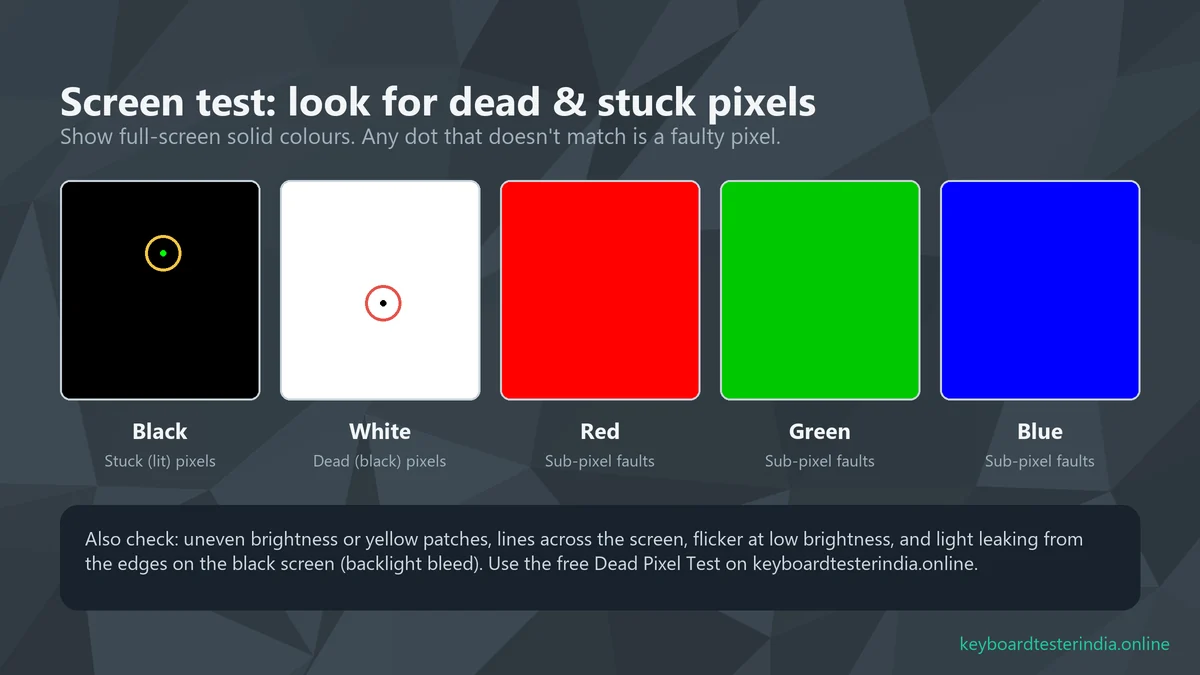
- Dead and stuck pixels. Open our Dead Pixel Test in full screen and cycle through black, white, red, green and blue. A dead pixel is a black dot on white; a stuck pixel is a coloured dot on black.
- Lines, patches and flicker. Look for vertical or horizontal lines, yellow patches or pressure marks. Turn brightness down to the lowest level and check for flicker.
- Backlight bleed. On the black screen, dim the room and look for light glowing from the edges. A little is normal on cheaper LCD panels; bright patches are not.
- Brightness and hinge cable. Move the lid back and forth while watching the screen. If the picture flickers or goes blank at some angles, the display cable is damaged.
Area 3: Keyboard and touchpad (checks 9–12)
- Test every key. Open our online keyboard tester and press every key, including function keys, arrows and the numpad. Every key should turn grey. Keys that don't respond are an instant bargaining point, or a reason to walk away.
- Check for double typing. Type a sentence in Notepad, or run the Key Chatter Test. Letters that appear twice mean worn switches.
- Test the touchpad. Use the Touchpad Test to check smooth tracking, left and right clicks, tap to click, two-finger scrolling and pinch zoom.
- Check the keyboard backlight, if the model has one, and look for shiny, worn keycaps. Heavy wear on the keys and touchpad suggests very heavy use, even if the seller says "lightly used".
If you find faulty keys, our guide on fixing a laptop keyboard that isn't working explains which problems are simple settings and which need a costly repair.
Area 4: Battery and charger (checks 13–16)
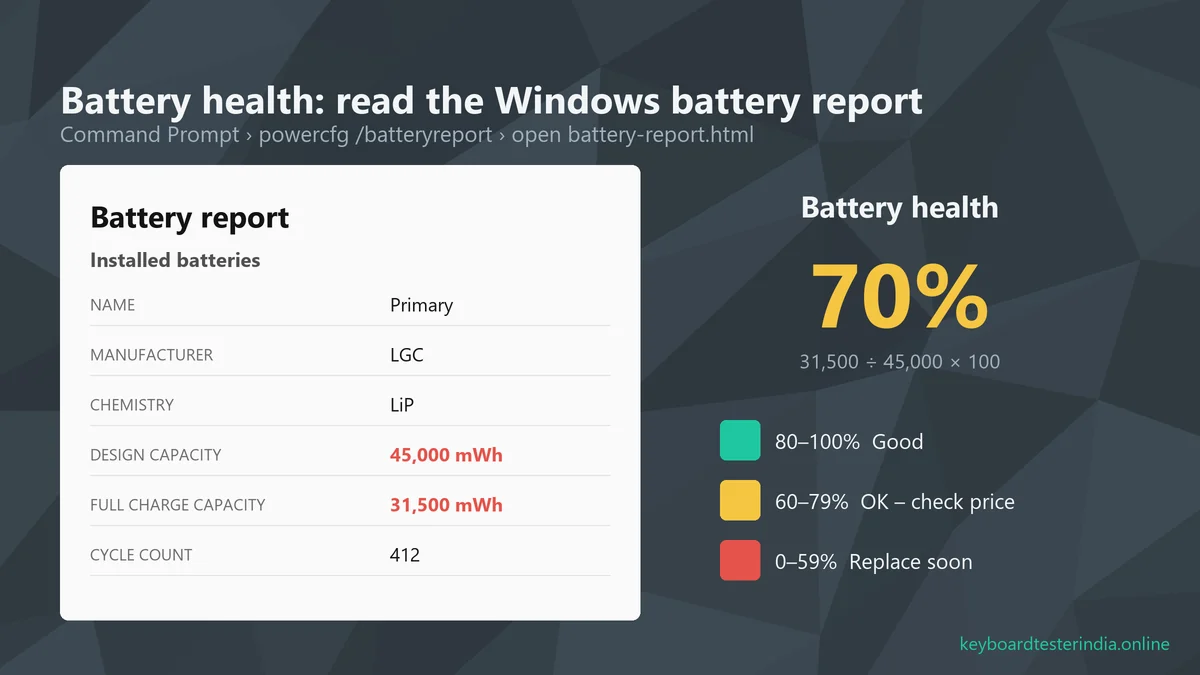
- Generate a battery report. On Windows, open Command Prompt, type
powercfg /batteryreportand press Enter. Open thebattery-report.htmlfile it saves (usually inC:\Users\YourName). - Calculate battery health. Divide Full Charge Capacity by Design Capacity and multiply by 100. For example, 31,500 ÷ 45,000 × 100 = 70%. Also note the Cycle Count; most laptop batteries are rated for roughly 300–1,000 cycles.
- Watch it on battery. Unplug the charger and use the laptop for 10–15 minutes with Wi-Fi and a YouTube video running. The percentage should drop steadily, not jump from 60% to 20% or shut down suddenly.
- Check the charger. Is it original (brand logo, correct wattage on the label)? Does the charging light come on, and does the percentage rise when plugged in? A replacement original charger can cost ₹1,500–₹3,500, so a missing one should lower the price.
On a MacBook, open System Settings › Battery › Battery Health for its condition and maximum capacity, and System Information › Power for the cycle count.
Area 5: Ports, Wi-Fi and Bluetooth (checks 17–20)
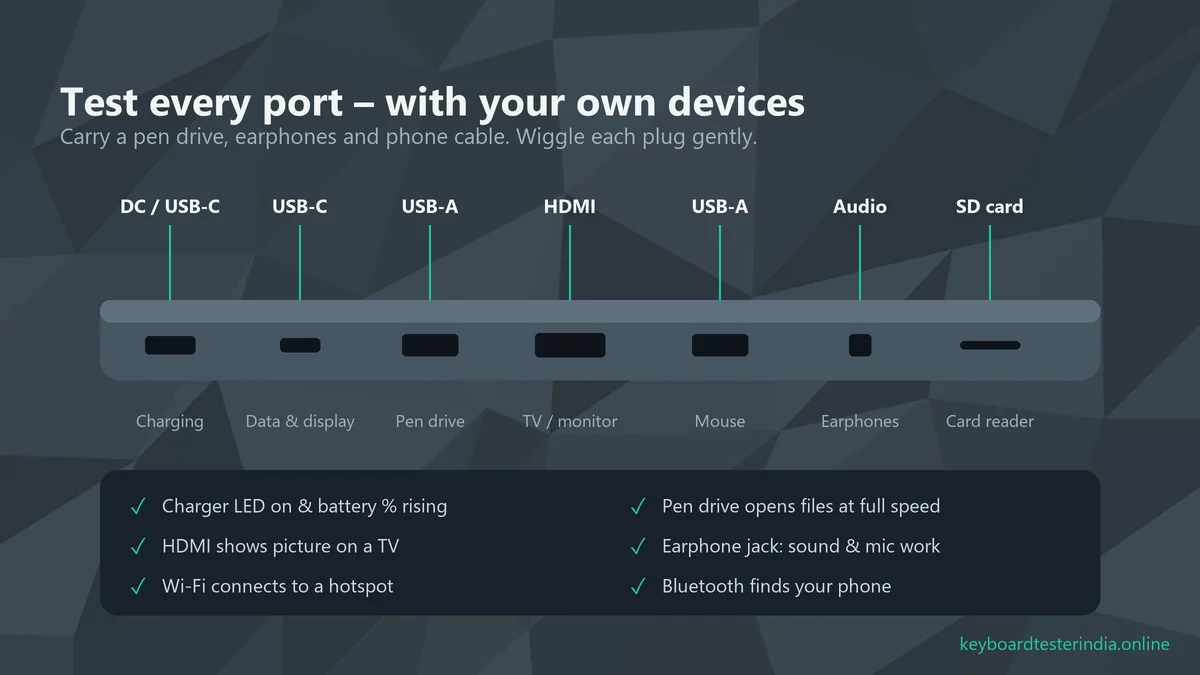
- USB ports. Plug your pen drive into every USB-A and USB-C port and open a file from it. Wiggle the plug gently; a loose port that disconnects is a sign of wear.
- HDMI and display output. If possible, connect to a TV or monitor. If the laptop charges over USB-C, check whether that port also supports display output.
- Wi-Fi. Connect to your phone's hotspot and open a few websites, or run a speed test. Weak Wi-Fi can mean a damaged antenna cable from a previous repair.
- Bluetooth. Pair your phone or earbuds from Settings › Bluetooth & devices.
Area 6: Speakers, microphone and webcam (checks 21–23)
- Speakers. Use the Speaker Test to play sound from the left and right speakers separately. Listen for crackling or rattling at medium volume.
- Microphone. Open the Mic Test, speak, and record 5 seconds. Then plug in your earphones and check both the headphone output and the earphone mic.
- Webcam. Run the Webcam Test to check the picture, resolution and frame rate. Make sure any privacy shutter or camera key works.
Area 7: Performance, storage and software (checks 24–27)
- Confirm the specs. Press Win + R, type
msinfo32and check the processor, installed RAM and system model. Open Task Manager › Performance to see the storage type (SSD or HDD) and size. Sellers sometimes swap in less RAM or a smaller drive. - Check SSD or hard disk health. A free tool like CrystalDiskInfo shows the drive's health status and total hours used. "Good" is what you want; "Caution" means the drive may fail.
- Stress it for 10 minutes. Play a 1080p video while browsing with several tabs open. Listen to the fan and feel the base. Loud grinding fans, very hot keyboards or sudden shutdowns point to cooling problems.
- Check Windows and accounts. Go to Settings › System › Activation to confirm Windows is activated. Make sure the seller has removed their Microsoft account. Look for "This device is managed by your organization" in Settings; ex-office laptops can stay locked to a company.
Ideally, ask the seller to reset the laptop (Settings › System › Recovery › Reset this PC) in front of you after testing, so you start with a clean system and none of their files or accounts.
Area 8: Bill, serial number and ownership (checks 28–30)
- Get the original bill. The original purchase invoice (GST invoice) is the best proof that the laptop isn't stolen, and you may need it for warranty claims. Be very careful with "no bill, it was a gift" stories.
- Match the serial number on the bill, the sticker under the laptop and the BIOS or
msinfo32. They must all be the same. A scratched or missing sticker is a red flag. - Write a simple sale receipt. Note the date, price, laptop model, serial number, and the seller's name, phone number and address, and get it signed. Take a photo of the seller's ID if they agree. Pay by UPI or bank transfer rather than cash, so there's a record.
Green flags and red flags
After the 30 checks, step back and look at the overall picture. Some warning signs aren't about hardware at all:
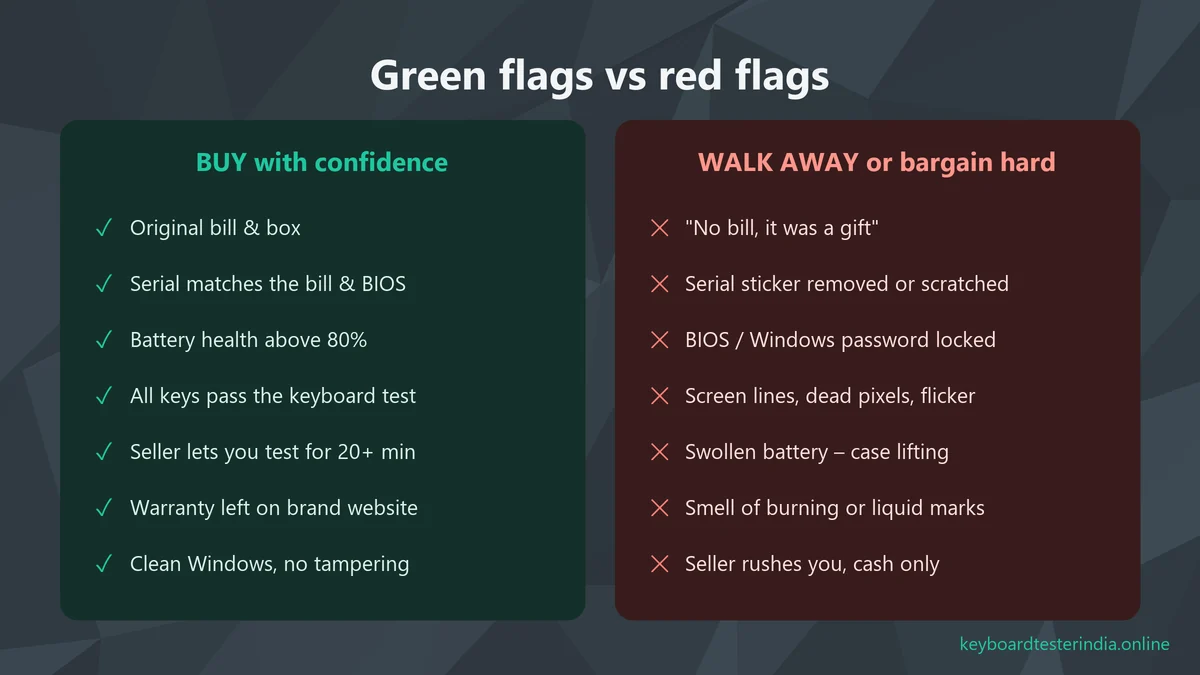
- A BIOS or Windows password the seller "forgot" is a serious red flag. Locked laptops are often stolen or company-owned.
- A price far below the market for the same model usually hides a problem.
- A seller who refuses testing or says "just check it switches on" is protecting a fault.
- A "fresh Windows install" done just before the sale isn't bad in itself, but check that drivers are installed and Windows is activated.
How much should you pay?
Prices vary a lot by model, city and condition, but a rough rule of thumb in the Indian market looks like this:
| Laptop age | Typical price vs a new equivalent |
|---|---|
| Under 1 year, with warranty and bill | About 65–75% |
| 1–2 years | About 50–65% |
| 2–3 years | About 40–55% |
| 3–5 years | About 25–40% |
Compare with the price of a similar new laptop today, not the old launch price. Then subtract the cost of anything that needs fixing: a new battery (often ₹2,500–₹6,000), a missing original charger, a faulty keyboard, or a worn-out hard disk you'll want to replace with an SSD. Use your test results politely: "the battery is at 68% and two keys don't work, so I can offer ₹X" works far better than haggling without reasons.
Used vs refurbished: which is better?
Refurbished laptops are sold by brands or established sellers after testing, repair and cleaning, usually with a warranty of 6–12 months and a GST invoice. They cost a little more than a private sale but carry much less risk, which makes them the better choice for students and first-time buyers.
Used laptops from individuals are cheaper and sometimes come with the remaining brand warranty, but there is no return option if something fails next week. That's exactly why this checklist exists. Whichever you choose, run the same tests; "refurbished" doesn't always mean "perfect".
Quick checklist (save or screenshot this)
| Area | What to check | Tool / method |
|---|---|---|
| Body | Cracks, hinges, screws, liquid marks | Look, open and close the lid 10 times |
| Screen | Dead pixels, lines, bleed, flicker | Dead Pixel Test |
| Keyboard | Every key, double typing, backlight | Keyboard Tester, Chatter Test |
| Touchpad | Tracking, clicks, scroll, pinch | Touchpad Test |
| Battery | Health %, cycle count, 15 minutes on battery | powercfg /batteryreport |
| Charger | Original, correct wattage, charging light | Look at the label, plug in |
| Ports | USB, USB-C, HDMI, audio jack | Your pen drive, earphones, TV |
| Wireless | Wi-Fi speed, Bluetooth pairing | Phone hotspot and earbuds |
| Audio & camera | Speakers L/R, mic, webcam | Speaker, Mic, Webcam tests |
| Performance | CPU, RAM, SSD health, heat | msinfo32, Task Manager, CrystalDiskInfo |
| Software | Windows activated, no org lock, reset | Settings › Activation & Recovery |
| Papers | Bill, matching serial, written receipt | Bill, bottom sticker, BIOS |
7 common mistakes to avoid
- Testing only on the charger. Many faults, such as a weak battery or sudden shutdowns, only appear on battery power.
- Trusting the sticker specs. Stickers show the original configuration, not what's inside today. Always confirm in
msinfo32and Task Manager. - Testing for two minutes. Heat, fan noise and intermittent screen flicker usually show up after 10–15 minutes of use.
- Skipping the keyboard. People check the screen and forget that one dead key, like Backspace or Enter, makes a laptop painful to use. Test every key.
- Ignoring the charger. A cheap duplicate charger can damage the battery and the charging circuit over time.
- Not resetting after purchase. Reset Windows and change all passwords so the previous owner's accounts, saved logins and any unwanted software are gone.
- Paying before testing. Whether it's an OLX listing or a shop, payment should come after the laptop has passed your checks, never before.
What to do right after you buy
Once the laptop is yours, spend an evening setting it up properly. Reset Windows if the seller didn't, sign in with your own Microsoft account, install updates and the brand's support app for drivers, and turn on battery-care mode if available. Check the warranty status again under your name, and keep the bill and your sale receipt together in a safe place.
Final word
Buying a second-hand laptop in India can be a smart, money-saving decision when you test properly. Give yourself 20–30 minutes, go through the eight areas, and let the results guide your price. A seller with a genuine laptop will be happy to let you test; one who isn't is telling you something. Bookmark our free laptop test tools on your phone so they're ready when you meet the seller, and good luck with your new (old) laptop!
Frequently asked questions
Is it safe to buy a second-hand laptop in India?
Yes, if you test it properly and get the right papers. Buy from a seller who lets you test for at least 20 minutes, check the serial number and warranty on the brand website, get the original bill or a written receipt with the seller's details, and avoid deals that look far too cheap.
How do I check battery health on a used laptop?
On Windows, open Command Prompt, type powercfg /batteryreport and open the battery-report.html file it creates. Divide Full Charge Capacity by Design Capacity and multiply by 100. Above 80% is good, 60 to 79% is acceptable with a lower price, and below 60% means the battery will need replacing soon.
What is a fair price for a second-hand laptop?
As a rough rule of thumb, a well-kept laptop around one year old sells for about 60 to 70% of its current new price, a two- to three-year-old one for about 40 to 55%, and older laptops for less. Battery health, warranty, condition and the original box and bill all move the price up or down.
Should I buy a used laptop or a refurbished laptop?
A refurbished laptop from a brand or a reputable seller has been tested and repaired and usually comes with a warranty of six months to a year, so it is safer for most buyers. A used laptop from an individual is often cheaper but has no warranty, so the checks in this guide matter even more.
How can I check if a used laptop is stolen?
There is no simple public database for stolen laptops in India like there is for mobile phones, so rely on paperwork. Ask for the original bill, check that the serial number on the bill matches the sticker and the BIOS, ask for the seller's ID, and be wary of missing bills, scratched serial stickers or locked BIOS passwords.
What should I take with me to check a second-hand laptop?
Carry a USB pen drive, earphones with a mic, your phone for a hotspot and Bluetooth test, a USB mouse, and ideally a charger cable for USB-C laptops. Also open the online test tools on keyboardtesterindia.online before you go.
Test your laptop for free
Use these free tools while you follow this guide. They run in your browser, with nothing to install.

We build free online tools to test keyboards, mice, screens and other laptop parts, and write practical guides for laptop and PC users across India. Spotted something out of date? Let us know.