How to Type the Rupee Symbol (₹) on Your Keyboard – Plus 40 Special Characters
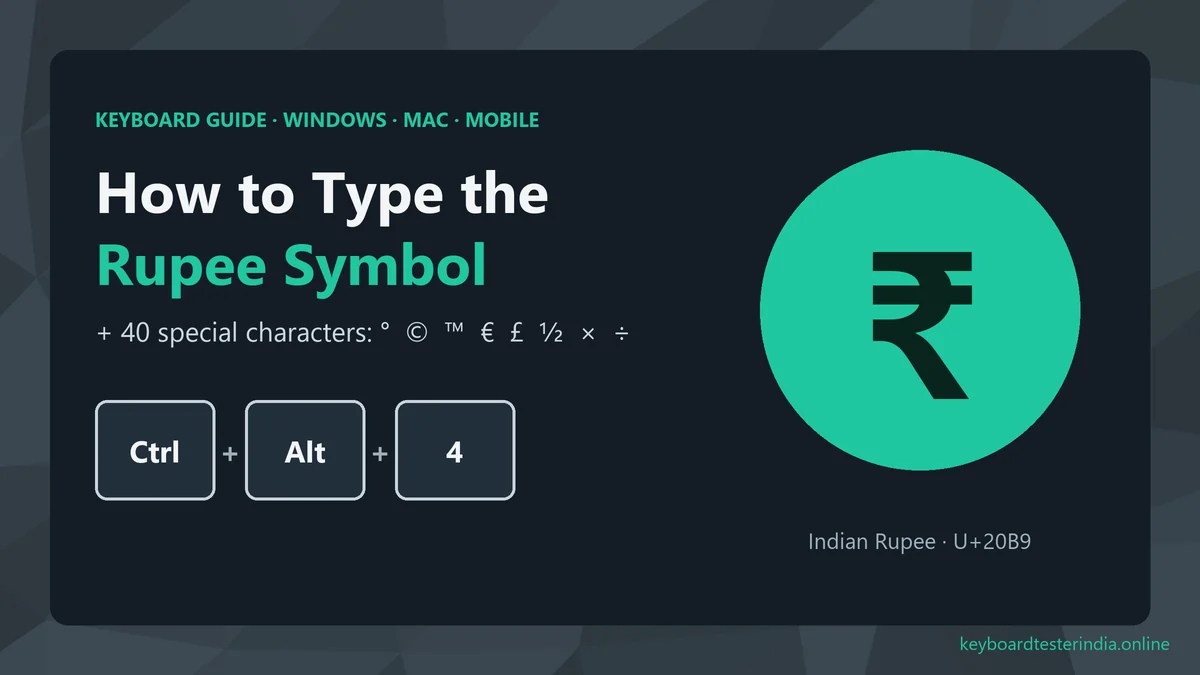
The Indian Rupee symbol ₹ appears on every bill, invoice, price list and payment message in India, yet it's printed on very few keyboards. So people type "Rs." or "INR" or copy ₹ from Google every time. You don't have to. This guide shows the fastest way to type ₹ on Windows, in Word and Excel, on a Mac, and on Android and iPhone, plus a handy list of Alt codes for 40 other special characters like °, ©, ™, €, ½ and ×.
Key takeaways
- Windows: Ctrl + Alt + 4 types ₹ when the English (India) keyboard is selected.
- Any Windows app, no setup: Win + . › Symbols › ₹.
- Microsoft Word: type
20B9and press Alt + X. - Mac: Control + Command + Space, search "rupee".
- Phones: it's on the symbols page (Android) or under a long-press of $ (iPhone).
About the ₹ symbol
India adopted the Rupee symbol in 2010. It was designed by D. Udaya Kumar and combines the Devanagari letter "र" (ra) with the Roman capital "R", with two horizontal lines at the top that also echo the Indian flag and the "equal to" sign. In computing, ₹ has its own Unicode code point, U+20B9, so all modern fonts, phones and operating systems can display it.
Quick answer: ₹ shortcut for every device
| Device / app | Fastest way to type ₹ |
|---|---|
| Windows 10 / 11 | Ctrl + Alt + 4 (English India keyboard) or Win + . |
| Microsoft Word | Type 20B9, then Alt + X |
| Microsoft Excel | Ctrl + Alt + 4, or Currency format "₹ English (India)" |
| Google Docs | Insert › Special characters › search "rupee" |
| Mac | Control + Command + Space › search "rupee" |
| Android (Gboard) | ?123 › ₹ on the symbols page |
| iPhone | 123 › hold $ › slide to ₹ |
Method 1 (Windows): Ctrl + Alt + 4
Windows has a built-in Rupee shortcut, but only on the English (India) keyboard. Many laptops sold in India already have it; others are set to English (United States) by default.
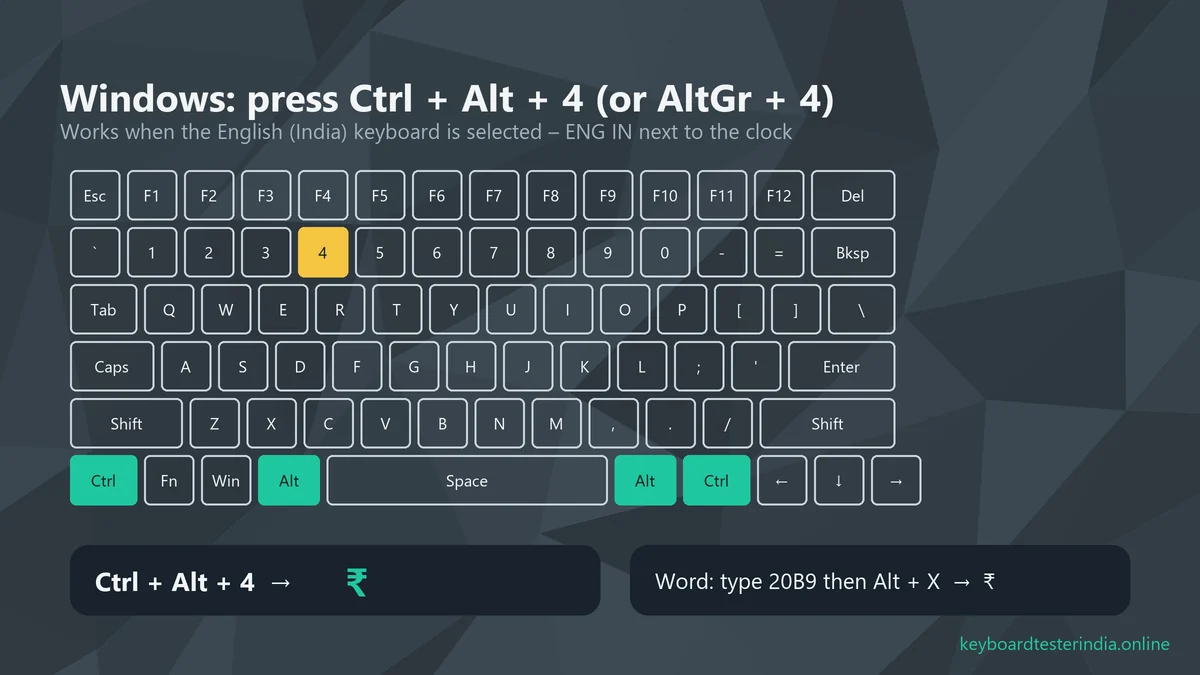
- Look at the language indicator next to the clock on the taskbar. If it shows ENG IN, you're ready.
- Click where you want to type and press Ctrl + Alt + 4. On keyboards with an AltGr key (the right Alt), AltGr + 4 does the same.
- ₹ appears. Use the 4 in the number row at the top, not the numeric keypad.
If the shortcut doesn't work: add the English (India) keyboard
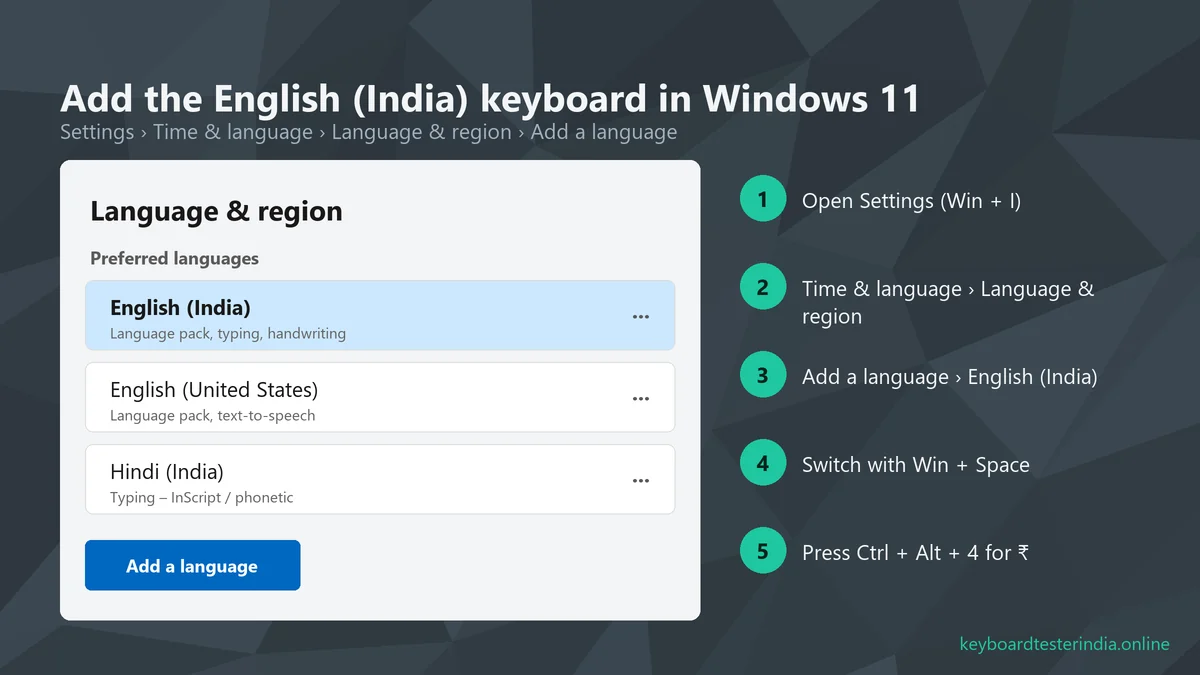
- Press Win + I to open Settings.
- Go to Time & language › Language & region.
- Click Add a language, search for English (India), select it and install. You can untick the extra features if you only want the keyboard.
- Press Win + Space to switch to ENG IN, then try Ctrl + Alt + 4 again.
The English (India) keyboard types exactly like the normal US keyboard. Every other key stays the same, so it's safe to make it your default. You can remove English (United States) afterwards if you don't need it.
Tip: if Ctrl + Alt + 4 does something else in one particular app, that app has its own shortcut on the same keys. Use Method 2 in that app instead.
Method 2 (Windows): the emoji and symbols panel – works everywhere
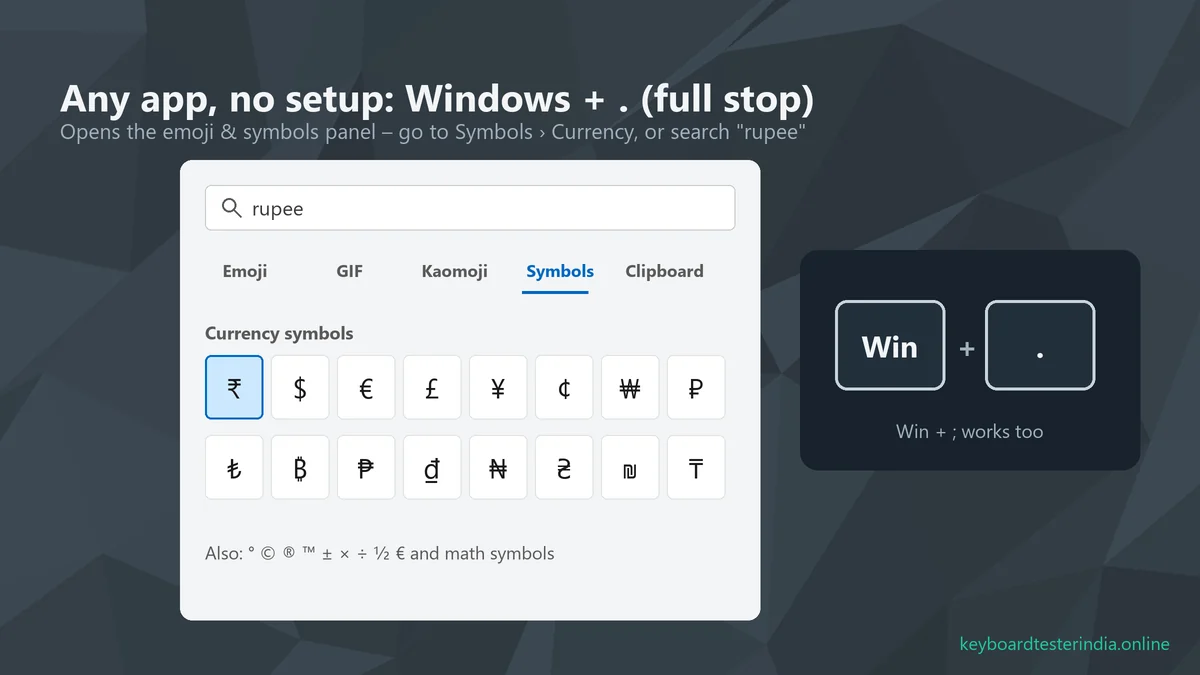
If you can't change the keyboard (an office computer, for example), Windows 10 and 11 have a symbols panel that works in almost any app, including browsers, WhatsApp Desktop, Notepad and Tally:
- Click where you want to type.
- Press Win + . (full stop) or Win + ; (semicolon).
- Click the Symbols tab (the Ω icon) and choose Currency symbols, or just type "rupee" in the search box.
- Click ₹. Windows remembers it in your recently used list, so next time it's just two clicks.
Method 3: Microsoft Word, Excel and PowerPoint
Word: type 20B9 then Alt + X
Word can convert any Unicode code into its character. Type 20B9 exactly where you want the symbol and press Alt + X. The code turns into ₹. If the code is stuck to a number (like 20B9500), Word gets confused, so add the symbol first and type the amount after.
Word and PowerPoint: Insert › Symbol
Go to Insert › Symbol › More Symbols, choose a common font like Arial or Calibri, set Subset to Currency Symbols, select ₹ and click Insert. You can also click Shortcut Key or AutoCorrect in the same window to create your own shortcut, for example replacing "rs." with ₹ automatically as you type.
Excel: show ₹ automatically on amounts
In Excel, you rarely need to type ₹ by hand. Select your amount cells, press Ctrl + 1, choose Currency or Accounting, and pick ₹ English (India) as the symbol. Excel will then also use the Indian number grouping (₹1,00,000 instead of ₹100,000) if your Windows region is set to India.
Google Docs and Google Sheets
In Google Docs, use Insert › Special characters and search "rupee". In Google Sheets, select the cells and use Format › Number › Custom currency to choose ₹. The keyboard shortcut Ctrl + Alt + 4 also works in both if you're using the English (India) keyboard.
More Windows tricks
- Alt + 8377: holding Alt and typing 8377 on the numeric keypad works in Word and some other apps, but in many programs it produces a different character. Use it only where you've tested it.
- Clipboard history: copy ₹ once, then press Win + V anytime to paste it again. Pin it in the clipboard panel so it's always there.
- Character Map: press Win + R, type
charmap, tick Advanced view and search "rupee".
Typing ₹ in Tally, Gmail, WhatsApp and websites
Once English (India) is set up, Ctrl + Alt + 4 works in most everyday apps. A few notes for popular ones:
- Tally: Tally shows the currency symbol from your company's settings, so set ₹ as the base currency symbol (and "INR" as the formal name) in the company features or currency settings instead of typing it in every voucher.
- Gmail, Outlook and WhatsApp Web: the shortcut works in the message box. If a browser extension captures the same keys, use Win + . instead.
- Online forms and banking websites: some older forms accept only numbers in amount fields. Type just the number there; the website adds the currency itself.
- Notepad and code editors: save files as UTF-8, the default in modern Windows, so ₹ isn't replaced with "?" when the file is opened elsewhere.
Make your own ₹ shortcut
If you type ₹ dozens of times a day, for invoices, quotations or social media posts, a personal text shortcut can be even faster than a key combination:
- Word and Outlook AutoCorrect: go to File › Options › Proofing › AutoCorrect Options. In Replace type something you never use as a real word, like
rs/, and in With paste ₹. Click Add. Now typingrs/followed by a space turns into ₹. - Phone text replacement: on iPhone, go to Settings › General › Keyboard › Text Replacement. On Gboard, go to Settings › Dictionary › Personal dictionary and add a shortcut for ₹.
- System-wide on Windows: free text-expander tools can replace a short code with ₹ in every app. Use only well-known, trusted software from its official website.
Symbols that are easy to confuse
- ₹ vs Rs. vs INR: all are correct ways to show Indian rupees. ₹ is the modern symbol, Rs. is the traditional abbreviation and INR is the international currency code. Pick one and use it consistently.
- ° (degree) vs º (ordinal indicator): they look almost the same, but ° (Alt + 0176) is the right one for temperatures and angles, as in 37 °C.
- – (en dash) vs — (em dash) vs - (hyphen): use a hyphen inside words (well-known), an en dash for ranges (10–20 pages), and an em dash for a break in a sentence.
- × (multiply) vs x (letter): for dimensions and maths, × (Alt + 0215) looks more professional: 1920 × 1080.
How to type ₹ on a Mac
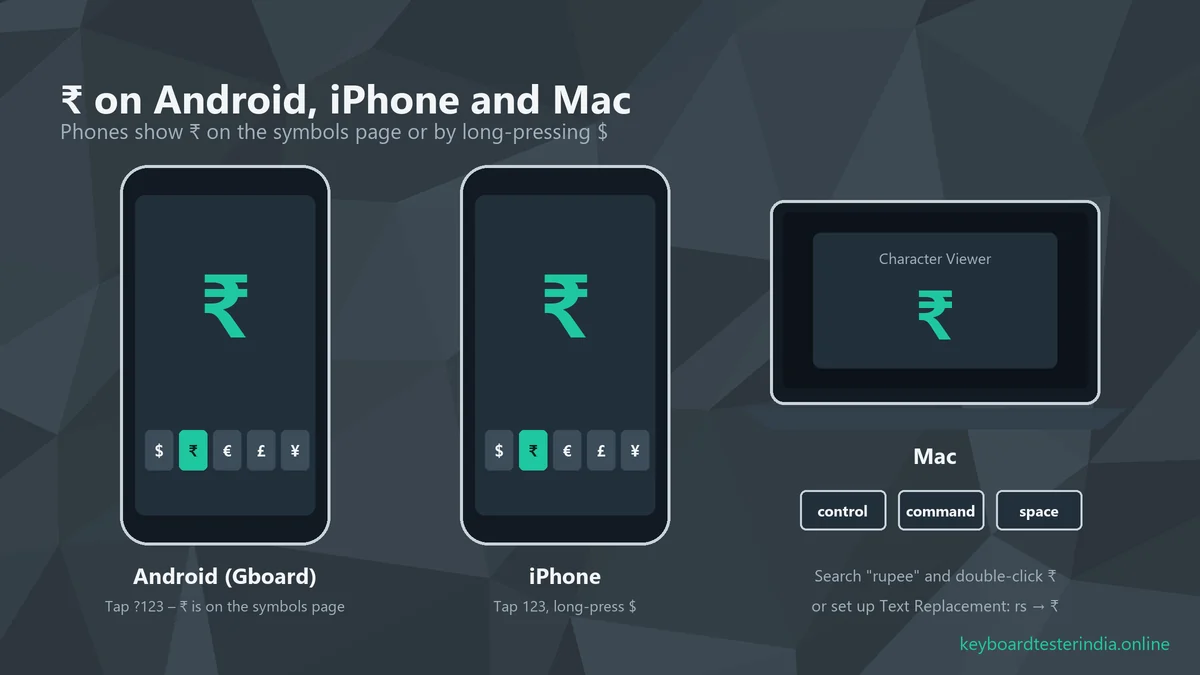
- Press Control + Command + Space (or Fn/Globe + E) to open the Character Viewer.
- Type "rupee" in the search box and double-click ₹.
For a permanent shortcut, open System Settings › Keyboard › Text Replacements, click + and set "rs/" to be replaced by "₹". It syncs to your iPhone and iPad too if you use iCloud. Advanced users can also add the Unicode Hex Input keyboard and type Option + 20B9.
How to type ₹ on Android and iPhone
- Android (Gboard, Samsung Keyboard and others): tap ?123. With English (India) selected, ₹ is usually right there on the symbols page. Otherwise, long-press the currency key to see ₹.
- iPhone and iPad: tap 123, press and hold $, and slide to ₹. Setting your region to India in Settings › General › Language & Region makes ₹ the default currency key on many layouts.
Why does ₹ show as a box or a question mark?
If you type ₹ and see an empty box (☐), a question mark or a different character, the font doesn't contain the symbol. This happens with old fonts and some older accounting or billing software. Fixes:
- Switch to a modern font: Arial, Calibri, Segoe UI, Nirmala UI, Roboto or Noto Sans all include ₹.
- Update the software. Older versions may not support Unicode properly.
- When making PDFs or printing, embed fonts, so ₹ looks the same on other computers.
- If a website or form still rejects ₹, write Rs. or INR instead. Both are perfectly acceptable.
How to write amounts with ₹ correctly
- Put the symbol before the amount: ₹500, ₹1,250.50.
- Use Indian digit grouping for large amounts: ₹1,00,000 (one lakh) and ₹1,00,00,000 (one crore).
- Don't combine symbols: write ₹500, not ₹ 500/- Rs. Use either ₹, Rs. or INR, not two of them.
- In international documents, INR (the ISO currency code) is clearest: INR 5,000.
Why isn't ₹ printed on my keyboard?
Most laptops sold in India use the standard US keyboard layout, which was designed long before the Rupee symbol existed in 2010. Some keyboards made for the Indian market now print a small ₹ on the 4 key. That's exactly where the English (India) shortcut puts it, so Ctrl + Alt + 4 is easy to remember: ₹ lives on 4, next to the $ sign. Even if your key doesn't show it, the shortcut works the same once the English (India) keyboard is active.
Bonus: typing Hindi and other Indian languages
The same Language & region settings let you type in Hindi, Marathi, Tamil, Telugu, Bengali, Gujarati and other Indian languages on a normal English keyboard:
- Phonetic keyboards (for example "Hindi Phonetic") let you type words as they sound in English letters, like typing "namaste" to get नमस्ते. This is the easiest option for most people.
- InScript keyboards map each Indian-language letter to a fixed key. They're faster once learned, and are used in many government typing tests.
- Switch between English and an Indian language with Win + Space, the same shortcut you use to switch to English (India).
Preparing for a Hindi typing exam? Read our guide to typing speed for government exams, and practise with the Hindi mode of our typing speed test.
Alt codes for 40 special characters (Windows)
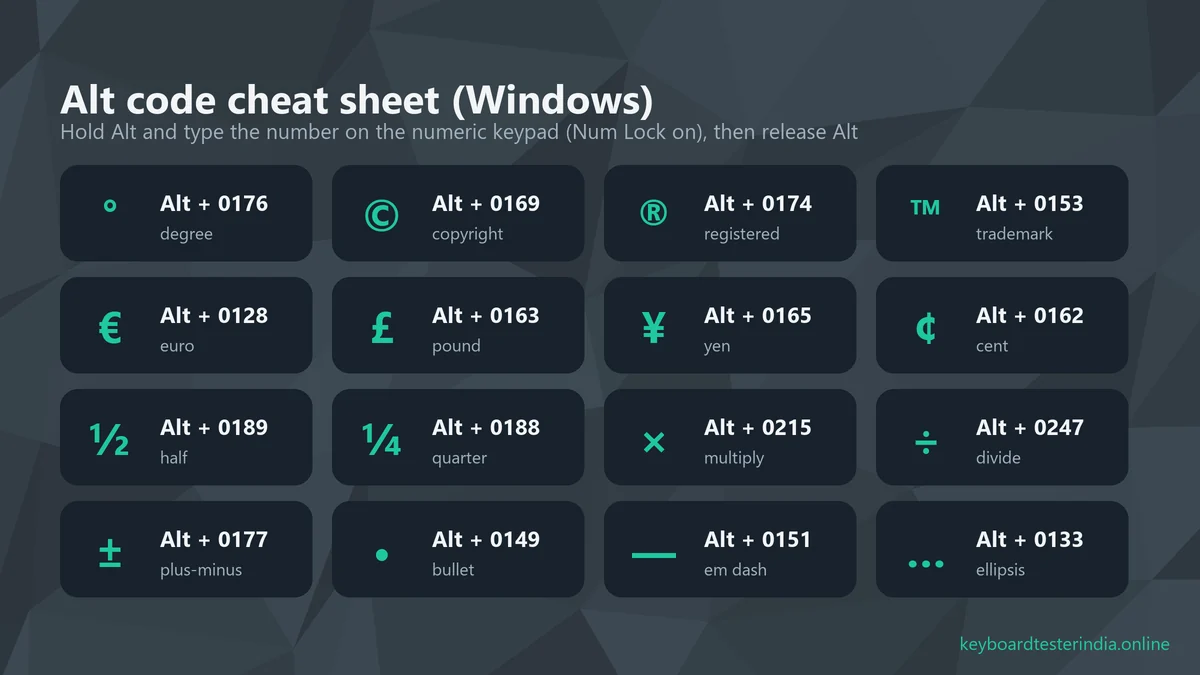
Alt codes let you type characters that aren't on your keyboard. Hold Alt, type the number on the numeric keypad with Num Lock on, and release Alt. The leading zero matters: Alt + 0176 gives °.
| Symbol | Name | Alt code | Symbol | Name | Alt code |
|---|---|---|---|---|---|
| ° | Degree | 0176 | © | Copyright | 0169 |
| ® | Registered | 0174 | ™ | Trademark | 0153 |
| € | Euro | 0128 | £ | Pound | 0163 |
| ¥ | Yen | 0165 | ¢ | Cent | 0162 |
| ½ | One half | 0189 | ¼ | One quarter | 0188 |
| ¾ | Three quarters | 0190 | × | Multiply | 0215 |
| ÷ | Divide | 0247 | ± | Plus-minus | 0177 |
| ² | Squared | 0178 | ³ | Cubed | 0179 |
| ¹ | Superscript one | 0185 | ‰ | Per mille | 0137 |
| µ | Micro | 0181 | • | Bullet | 0149 |
| – | En dash | 0150 | — | Em dash | 0151 |
| … | Ellipsis | 0133 | § | Section | 0167 |
| ¶ | Paragraph | 0182 | † | Dagger | 0134 |
| ‘ | Left single quote | 0145 | ’ | Right single quote | 0146 |
| “ | Left double quote | 0147 | ” | Right double quote | 0148 |
| « | Left guillemet | 0171 | » | Right guillemet | 0187 |
| ¿ | Inverted question | 0191 | ¡ | Inverted exclamation | 0161 |
| é | e acute | 0233 | è | e grave | 0232 |
| á | a acute | 0225 | ñ | n tilde | 0241 |
| ü | u umlaut | 0252 | ç | c cedilla | 0231 |
Laptop without a numeric keypad?
Alt codes need the numeric keypad; the number row at the top won't work. Many laptops without a separate numpad have a hidden one on the letter keys (U I O J K L M), turned on with Fn + Num Lock or Fn + F11. If yours doesn't, use the Win + . symbols panel instead. It has all of these characters and doesn't need a numpad. Turning the hidden numpad on can make letters type numbers, so remember to turn it off afterwards. Our keyboard troubleshooting guide explains this in detail.
Mac shortcuts for common symbols
Macs don't use Alt codes. Instead, the Option key types symbols directly (US keyboard layout):
| Symbol | Mac shortcut | Symbol | Mac shortcut |
|---|---|---|---|
| © | Option + G | ® | Option + R |
| ™ | Option + 2 | ° | Option + Shift + 8 |
| € | Option + Shift + 2 | £ | Option + 3 |
| ¥ | Option + Y | ¢ | Option + 4 |
| ÷ | Option + / | ± | Option + Shift + = |
| … | Option + ; | • | Option + 8 |
| – | Option + - | — | Option + Shift + - |
Shortcut still not working? Check your keyboard
If Ctrl, Alt or 4 don't respond, or your Alt codes type the wrong thing, the problem might be the keyboard itself. Open our free keyboard tester and press Ctrl, Alt, the number keys and the numpad. Each working key lights up. Keys that stay dark may need cleaning or repair, and keys that type twice can be confirmed with the Key Chatter Test.
Summary
The quickest way to type ₹ on Windows is Ctrl + Alt + 4 with the English (India) keyboard, which takes one minute to add in Settings. When you can't change the keyboard, Win + . works in any app. In Word, type 20B9 and press Alt + X; in Excel, use the ₹ English (India) currency format. On Mac use the Character Viewer or Text Replacement, and on phones you'll find ₹ on the symbols page or by long-pressing $. Bookmark this page for the Alt code list, and you'll never need to copy ₹ from Google again.
Frequently asked questions
What is the shortcut key for the Rupee symbol?
On Windows, press Ctrl + Alt + 4 (or AltGr + 4) while the English (India) keyboard is selected. If that does not work, press Windows + . (full stop), open Symbols and choose ₹ from the currency list. In Microsoft Word you can also type 20B9 and press Alt + X.
Why does Ctrl + Alt + 4 not type ₹ on my laptop?
The shortcut only works with the English (India) keyboard layout. Add English (India) in Settings › Time & language › Language & region, switch to it with Windows + Space, and try again. Some apps also use Ctrl + Alt + 4 for their own shortcut, which overrides it.
How do I type the Rupee symbol in Excel?
To type it in a cell, use Ctrl + Alt + 4 with the English (India) keyboard. To show amounts with ₹ automatically, select the cells, press Ctrl + 1, choose Currency and pick ₹ English (India) as the symbol.
What is the Alt code for the Rupee symbol?
There is no classic Alt code for ₹ that works everywhere, because classic Alt codes only cover older character sets. Holding Alt and typing 8377 on the numeric keypad works in Microsoft Word and some other apps but can produce a different character elsewhere. Ctrl + Alt + 4 or the Windows + . panel are more reliable.
Why does the Rupee symbol show as a box or "Rs"?
An empty box means the font being used does not include the ₹ character, which happens with very old fonts or software. Switch to a modern font such as Arial, Calibri, Segoe UI or Nirmala UI, or update the software.
How do I type ₹ on an Android phone or iPhone?
On Gboard and most Android keyboards, tap ?123 and you will find ₹ on the symbols page, or long-press the currency key. On iPhone, tap 123, then press and hold the $ key and slide to ₹.
Test your laptop for free
Use these free tools while you follow this guide. They run in your browser, with nothing to install.

We build free online tools to test keyboards, mice, screens and other laptop parts, and write practical guides for laptop and PC users across India. Spotted something out of date? Let us know.